
What you’ll be able to do
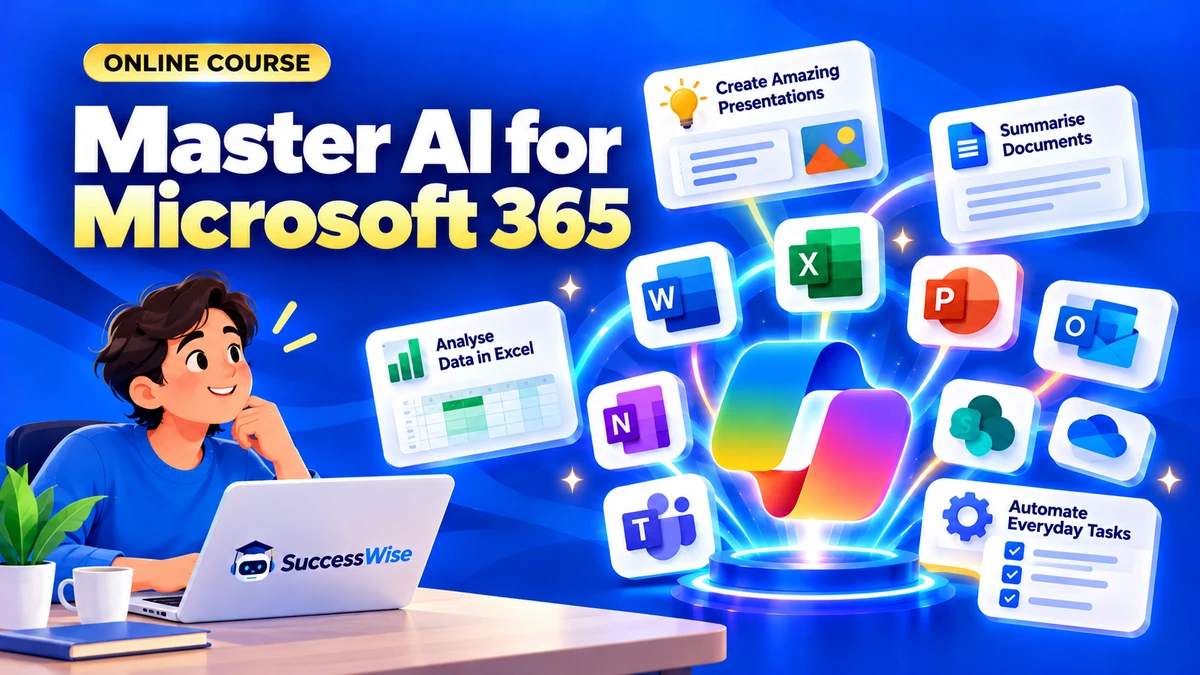
Get AI help with the everyday work you already do in Word, Excel, PowerPoint, Outlook and Teams.
- Finish every lesson on one of three setup paths — including a free oneLesson 2
- Write work briefs that contain the four things a usable answer needsLesson 3
- Produce an executive-ready document from rough material and reshape it per audienceLessons 5–6
- Find the real insight in a spreadsheet, not just a summary, and turn it into one slideLessons 9–10, 12
- Turn an inbox into decisions and actions, and long threads into usable summariesLessons 13–14
- Leave every meeting with an owned, dated plan — and catch up on missed onesLessons 17–18, 20
Certificate of Completion
Get a certificate when you finish, to show what you have learned.
Complete all lessons in the course
Who this is not for
This course may not be right for you if:
- You don't work in Microsoft 365. The whole course lives inside its apps; Google Workspace users have a different course here.
- You want developer-grade AI integration, APIs and automation code. This is working-professional AI use.
- Your organisation blocks all AI tools at the network level. No course overcomes that; ask IT first.
About this course
The Microsoft 365 working day has a shape: a document to produce, a spreadsheet to interrogate, an inbox to survive, meetings that end in nobody owning anything. Individually each is survivable. Together, five days a week, they're the job — and most people work them with no help at all. This course installs the help, and it starts honestly: Lesson 2 lays out three setup paths, including one that costs nothing, because paid Copilot licences aren't universal and IT often controls them — every lesson works on all three, so the course can be finished free. Module 1 closes with the brief you'll reuse all course: four things every real work prompt contains. Then each module takes one part of the day. Word: producing an executive-ready document from rough material, reshaping a draft for a different audience, reading a long document fast. Excel and PowerPoint: understanding any spreadsheet, finding the insight rather than the summary, turning an insight into a slide. Outlook: inbox to actions, summarising long threads, writing better emails faster. Teams: meeting prep in minutes, never losing an action item again, catching up on what you missed. The final module connects the apps into one complete workflow, redesigned around AI at every step, with a capstone to prove it. Twenty-four lessons at six to seven minutes each — the longest lessons in the category, because the work is real work. It suits office professionals whose week is made of exactly these five apps.
Frequently asked questions
Quick answers before you start.
Do I need a Copilot licence?
No. Lesson 2 sets out three paths — Copilot if your organisation provides it, and two others — one of which costs nothing. Every lesson works on all three, so the course can be finished without paying anyone for AI.
How much time does it take?
Twenty-four lessons at six to seven minutes each, plus a task per lesson and five module checkpoints. It's the longest course in the AI category by lesson length, deliberately.
Do I need to be an Excel or PowerPoint expert?
No. The spreadsheet lessons teach finding insight from scratch; the slide lesson turns that insight into one clear slide.
Is this the same as Master AI for PowerPoint?
No. That course goes deep on decks. This one covers the whole working day — Word, Excel, PowerPoint, Outlook and Teams — and ends by connecting them into one workflow.
Ready to make your workday easier?
Use AI in the Microsoft 365 apps you already know. No Copilot licence or Excel skills needed.